Appliance Manager
The Appliance Manager is a critical component of the SecretZero PAM solution, providing administrators with a centralized interface to manage and monitor the appliance. The Appliance Manager is based on the Cockpit framework, with customizations to align with SecretZero's functionality and branding.
How to Login
1. Using the Appliance Manager Application
In standard scenarios, the Appliance Manager is accessed using the desktop application, which can be downloaded as described in the Deploying Appliance Manager section.
Steps:
- Download the Appliance Manager as per the Deploying Appliance Manager instructions.
- Double-click on the
.exefile to launch the Appliance Manager UI. - Enter the following details:
- IP Address: The IP address of the appliance.
- Port:
9090. - Token: A temporary token (explained below).
- Dropdown: Select Appliance Manager.
- Click on Connect. The Appliance Manager UI will load.
NOTE - You may need to launch the exe as Administrator to download or upload files from your local filesystem.
Obtaining a Temporary Token
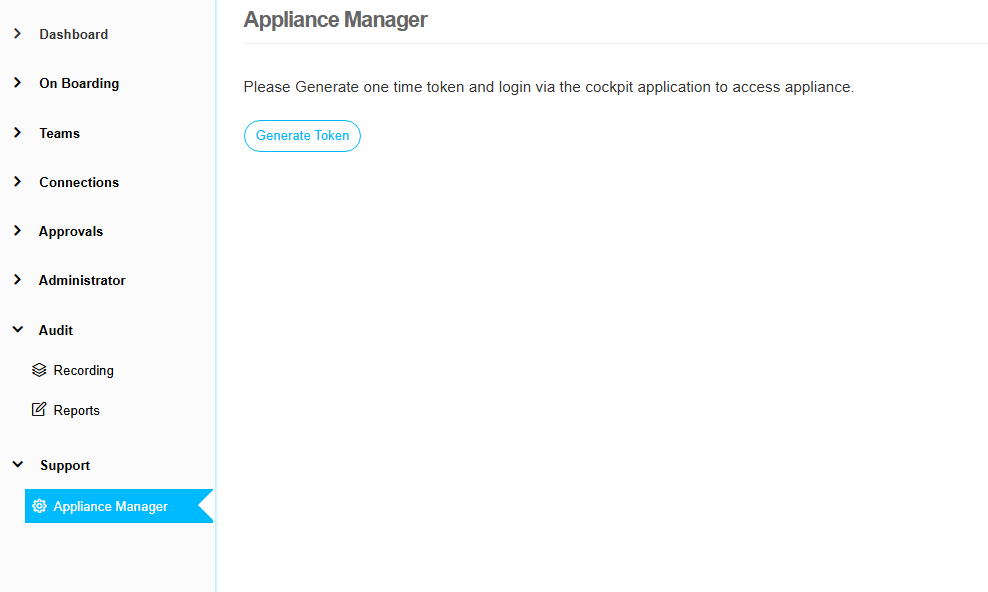
A temporary token to access the Appliance Manager can only be generated by an application user with administrator privileges. To generate the token:
-
Log in to the SecretZero application.
-
Locate the Support section on the left-hand pane and expand it.
-
Click on Appliance Manager.
-
Click on Generate Token. The token will be valid for 90 minutes.
2. Breakglass Access
If the SecretZero application is unavailable and a temporary token cannot be generated, you can use the Breakglass Access method:
-
Open a browser and navigate to:
https://<IP Address>:9090. -
Log in with the following credentials:
- Username:
user0-bgl. - Password: Use the password generated during the bootstrap process.
This method provides full administrative access to the appliance and is intended for emergency scenarios only.
Overview of Tabs
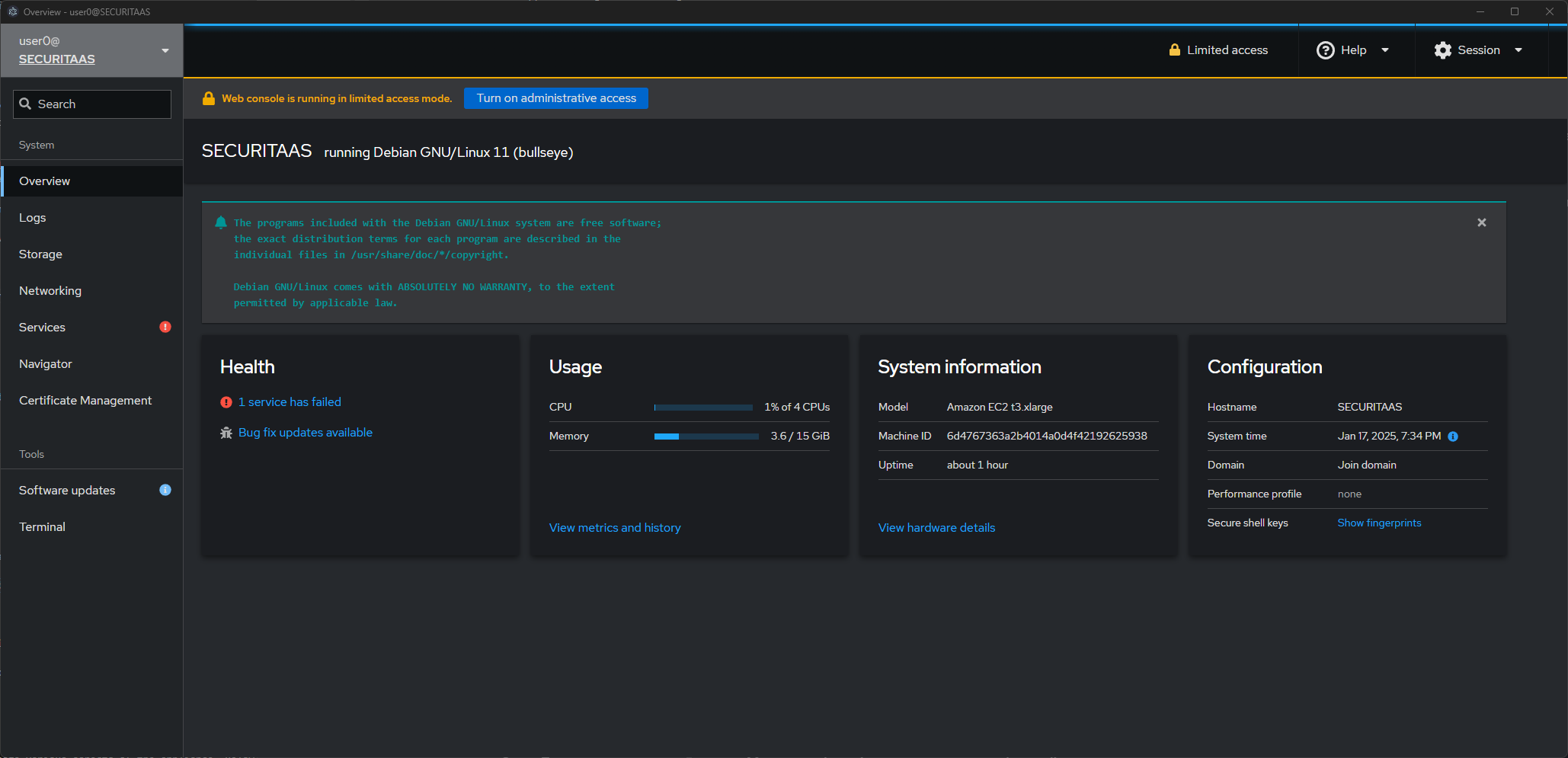
The Appliance Manager provides several tabs to manage various aspects of the appliance. Below is an overview of each tab:
1. Overview
- Displays system information such as CPU, memory usage, uptime, and running services.
- Provides a high-level view of the appliance's health and performance.
2. Logs
- View system logs to monitor activities and troubleshoot issues.
- Logs include kernel messages, application logs, and system errors.
3. Storage
- Manage and monitor storage usage on the appliance.
- Provides details about available storage, used space, and mounted partitions.
4. Networking
- Configure and monitor network interfaces.
- Provides details about IP addresses, gateways, and DNS configurations.
5. Services
- View and manage running services on the appliance.
- Also view logs for different services.
6. Navigator
- Explore the appliance's file system.
- Allows administrators to view, upload, or download files from specific directories.
7. Certificate Management
- Module for managing SSL certificates.
- Provides interfaces to manage certificates for the Web Server and LDAP Server.
- Validate, upload, and renew certificates to ensure secure communication.
8. Software Updates
- Manage software updates for the appliance.
- Check for available updates, install updates, and view update history.
9. Terminal
- Provides access to a web-based terminal for direct command-line interactions.
- Useful for advanced troubleshooting and administrative tasks.
Notes:
- The Appliance Manager is built on the Cockpit framework, with enhancements tailored to SecretZero's requirements.
- Access to sensitive features like Certificate Management and Software Updates is restricted to users with administrative privileges.
This section equips administrators with the knowledge to efficiently manage the appliance, ensuring smooth operations even during emergency scenarios. Let me know if additional details are needed!