Setting Up Authentication and Authorization on Red Hat-Based Systems
1. Setting Up Authentication: SSH Certificate-Based Authentication
To configure SSH certificate-based authentication using the SecretZero appliance:
Steps:
Download the SSH Public Key:
- Access the SecretZero Appliance Manager terminal as
user0. - Navigate to the directory
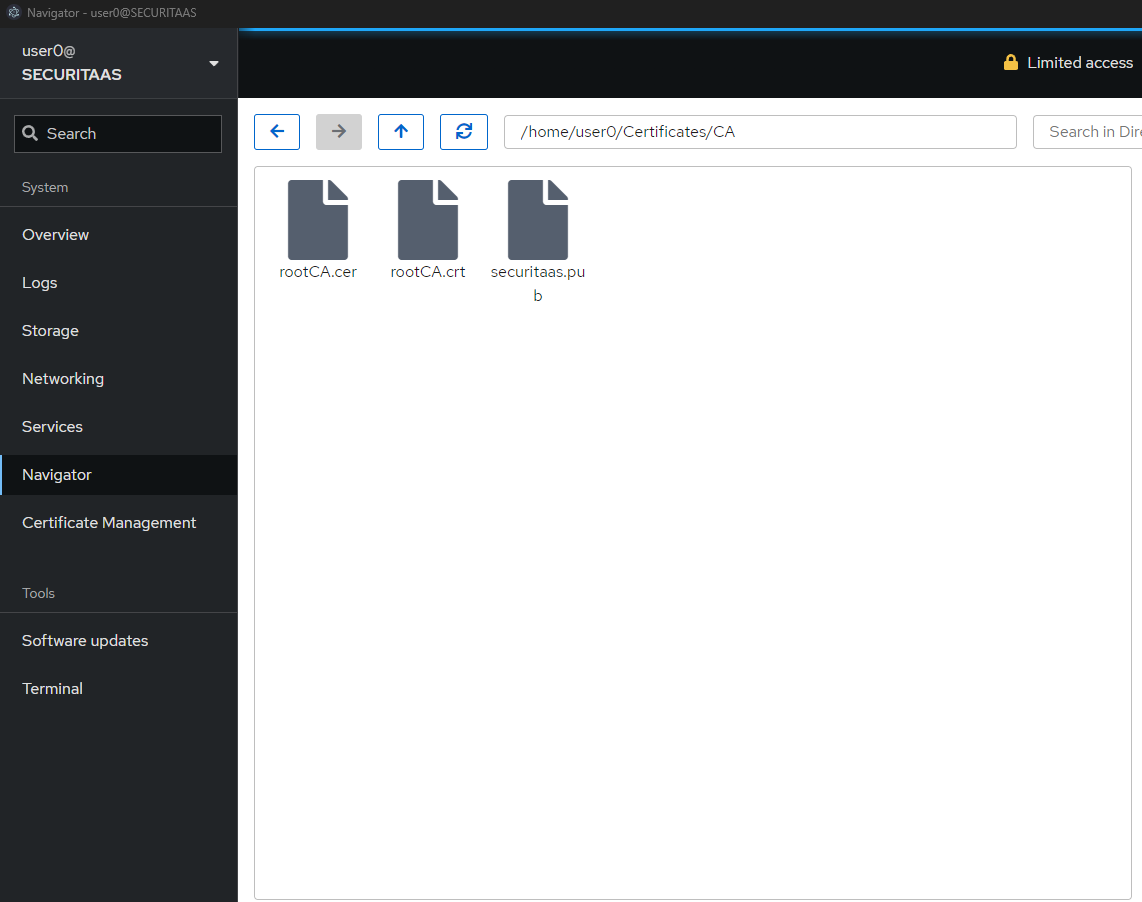
/home/user0/Certificates/CAand locate the file namedsecuritaas.pub. - Copy the contents of
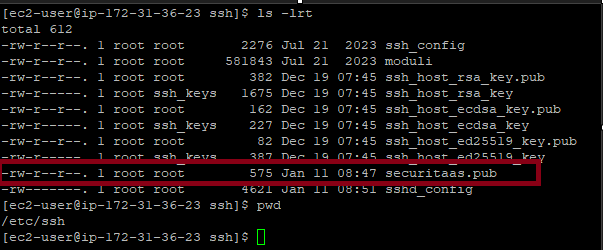
securitaas.pubto the Red Hat system's/etc/ssh/securitaas.pubfile(A new file should be created). - You can also download the file from the Navigator tab of the Appliance Manager as shown below and paste it into the
/etc/sshdirectory of the Linux server. - See here on how to login into appliance manager Logging into Appliance Manager instructions.
-
Go to Navigator Tab once logged in.
-
Ensure the file permissions are correct (owned by
rootwith644permissions).
Configure SSH to Trust the Public Key:
-
Edit the SSH configuration file (
/etc/ssh/sshd_config) to add the trusted public key directory:- Save and close the file.TrustedUserCAKeys /etc/ssh/securitaas.pub -
Restart the SSH Service:
-
Restart the SSH daemon to apply the changes:
sudo systemctl restart sshd
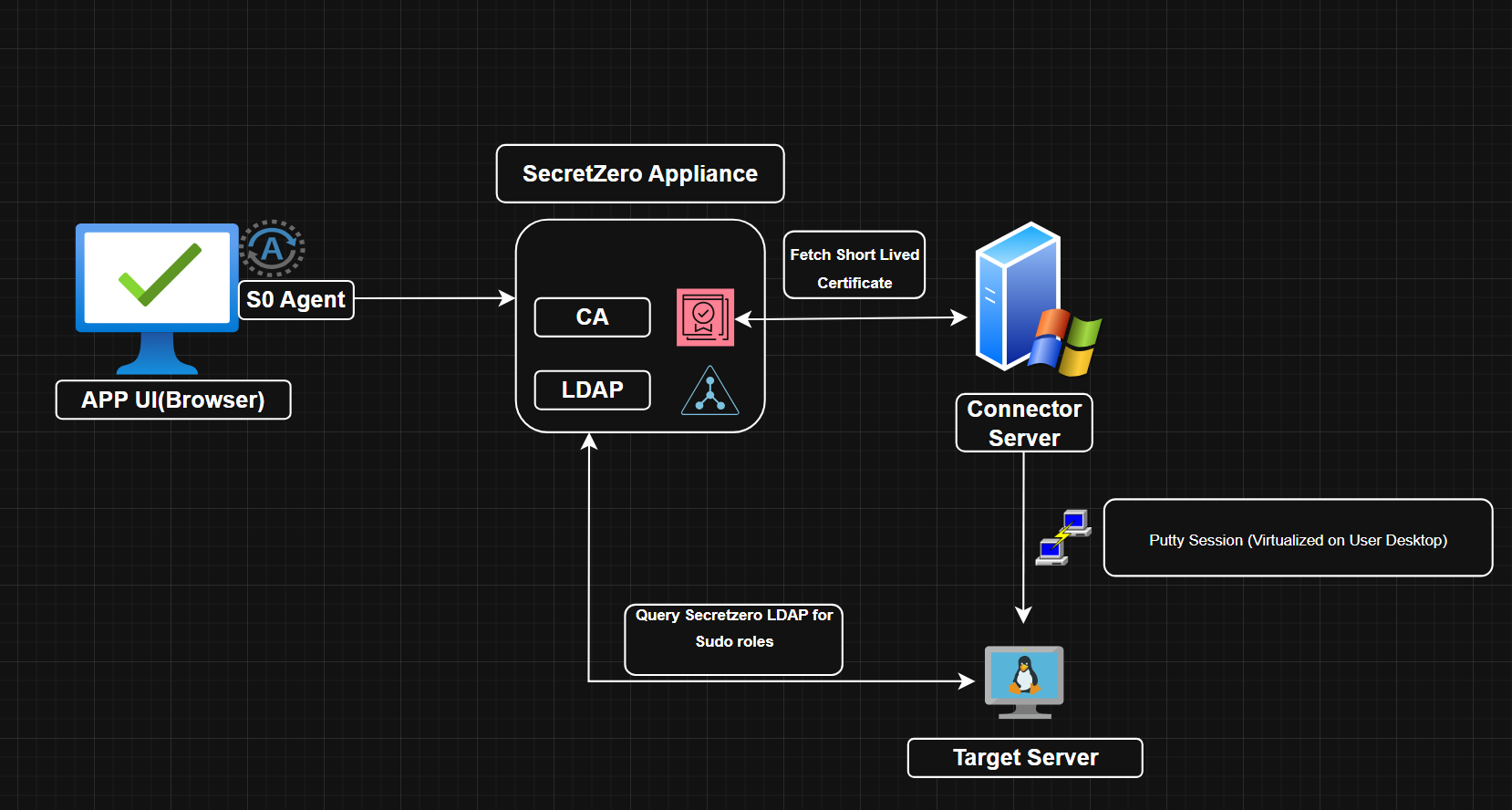
With this configuration, the SecretZero Certificate Authority will generate ephemeral SSH certificates that can be used to log in to the system securely. These certificates are validated against the trusted CA key (securitaas.pub) configured above.
See here to learn more about Ephemeral Certificates Ephemeral Certificates
2. Setting Up Authorization: LDAP Sudo for Privileged Elevation
To configure authorization for Privileged Access using the SecretZero appliance's LDAP server follow these Steps:
Note: Privileged Access here means all access rights that have been onboarded into SecretZero Application as Access Rights for Linux.
For a more conceptual view on Sudo-Ldap See here - sudo ldap
Steps:
Configure LDAP
- Install the Required Package:
-
Install the
sudo-ldappackage on the Red Hat system:sudo yum install sudo-ldap -
Configure LDAP for Sudo:
-
Edit the
/etc/sudo-ldap.conffile and add the following configuration:Replacebinddn cn=sudo-readonly,dc=securitaas,dc=com bindpw <password_from_bootstrap> uri ldap://<Appliance_IP>:389 sudoers_base ou=SUDOers,dc=securitaas,dc=com<password_from_bootstrap>with the password generated during the bootstrap process. For details, refer to Initial Secrets (Section 3 , LDAP Secrets) -
Replace
<Appliance_IP>with the IP address of the SecretZero appliance.
Explanation of the Configuration:
binddn: Specifies the LDAP user used to bind to the LDAP server (sudo-readonlyin this case).bindpw: The password for the bind user (sudo-readonly). This is securely generated during bootstrap.uri: The URI of the LDAP server. It should point to the SecretZero appliance running on port 389.sudoers_base: Specifies the base DN where sudo rules are stored in the LDAP directory.
Modify NSS Configuration for Sudo:
-
Edit the
/etc/nsswitch.conffile and ensure the following line exists:- This configuration ensures that sudo permissions are first checked in local files and then in the LDAP server.sudoers: files ldap -
Testing Sudo Authorization:
-
After completing the configuration:
- Log into main application portal.
- And initiate Connection to end pont from Request Connection page.
- Details here Initiate Connection
- Once logged into the Linux Server run this -
The system will look up the user's sudo permissions in the SecretZero LDAP directory and elevate you to the privileged account without any passwords.sudo su - <privileged_account_name>
Visual Flow
Summary of Setup
-
Authentication: Ephemeral SSH certificates provide secure and passwordless authentication, ensuring compliance with zero-trust principles. No Credentials Vaultin/rotation required.
-
Authorization: LDAP-based sudo rules allow centralized management of privileged accounts and their authorization, ensuring just-in-time and auditable access control.
-
Passwordless: Both Authentication and Authorization is completely passwordless