Post Deployment
After successfully deploying the appliance, there are important steps to complete before it becomes operational. This section outlines the post-deployment process, including assigning an IP address and completing the bootstrap setup.
Assigning an IP Address
Once the appliance is installed and powered on, it must be assigned an IP Address. This IP address will be used to access the appliance and perform the initial configuration.
Bootstrapping the Appliance
Before the appliance can be used, a bootstrapping process must be completed. This process is critical for performing the first-time appliance setup with customer-specific configurations.
Steps to Bootstrap
- Open the Browser:
- Enter the following URL:
https://<IP Address of the Appliance>. -
Example:
https://192.168.1.10. -
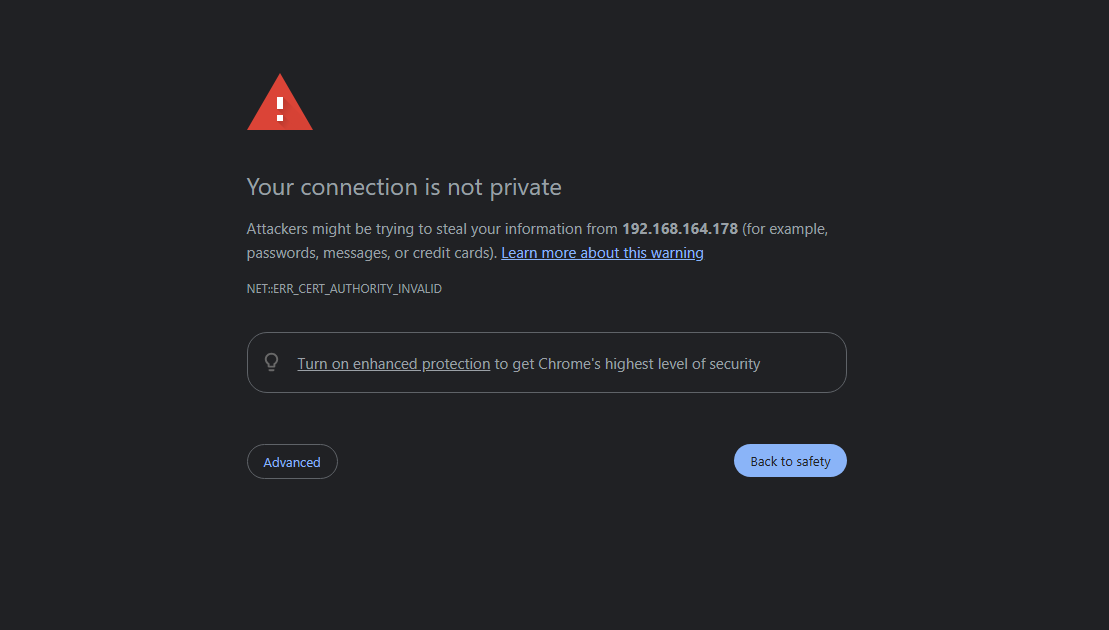
Handle Certificate Warnings:
- You will see certificate warnings because the appliance uses a self-signed certificate.
- Important: You will encounter this warning twice due to internal redirection. This is normal behavior.
- Login to Bootstrap Interface:
-
Use the following credentials to log in:
- Username:
bootstrap - Password:
bootstrap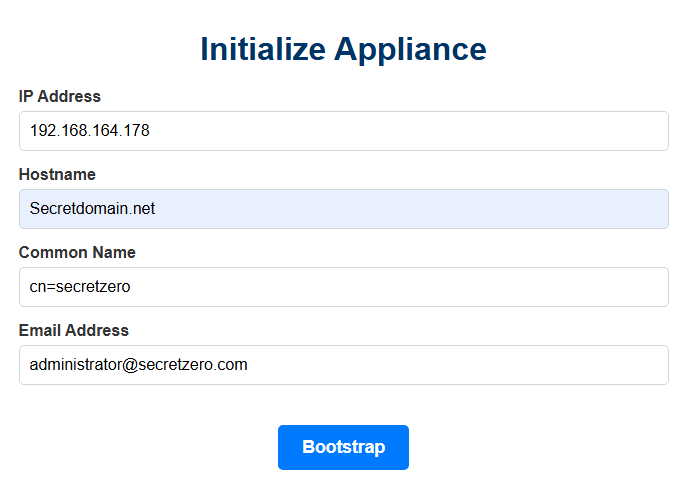
- Username:
-
Enter Bootstrap Fields: Fill out the following fields carefully:
| Field | Description |
|---|---|
| IP Address | Enter the IP address assigned to the appliance. Ensure this matches the assigned IP address. |
| Hostname | Enter the hostname or FQDN (Fully Qualified Domain Name). Ensure it is spelled correctly. |
| Common Name (CN) | Enter a Common Name for the appliance. |
| Provide an email address. The domain of the email must match the domain of the CN. |
Note: The IP Address must match exactly, as it configures origins inside the reverse proxy to enable access to services.
- Bootstrap the Appliance:
- Once all fields are filled, click the Bootstrap button.
-
Wait patiently for the bootstrap process to complete.
-
Copy Bootstrap Output:
- After the bootstrap completes, a set of secrets and configuration values will be displayed in the output field.
-
Use the Copy button below the output field to save this information. These values are essential for future operations.
-
Access the Main Application:
- After copying the bootstrap output, click on the Main Application button to proceed to the primary application interface.
Key Notes for Bootstrap Process
- Ensure all fields are entered correctly. Errors in the IP Address or Hostname can result in configuration issues and accessibility problems.
- Save the bootstrap output securely, as it contains critical information about the appliance setup.
- If any issue occurs during bootstrapping, restart the appliance and repeat the process carefully.
Completing these steps ensures that your appliance is fully configured and ready for use. Proceed to the main application for further configuration and operations.